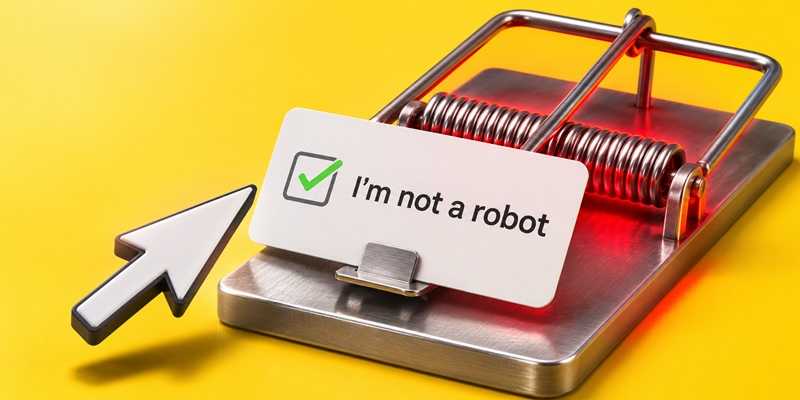
We’ve all seen them. You’re browsing a website when a little box pops up asking you to prove you’re human. You click a few pictures, check a box, and move on. No big deal, right? Unfortunately, scammers have figured out how to turn this familiar security feature into a way to infect your computer and steal your personal information.
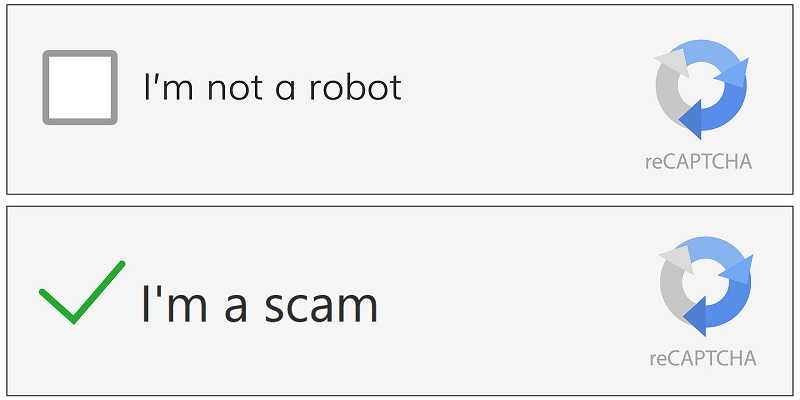
First, what exactly is a CAPTCHA? It’s a verification test websites use to distinguish real people from automated computer programs, or bots. You might be asked to click an “I’m not a robot” box, identify traffic lights, or type distorted letters. It’s a routine security measure most of us barely think about.
2
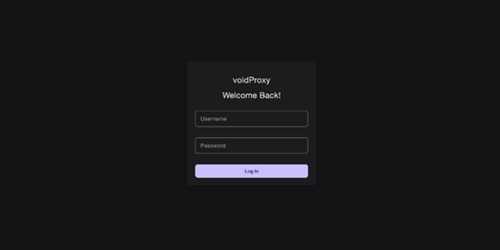
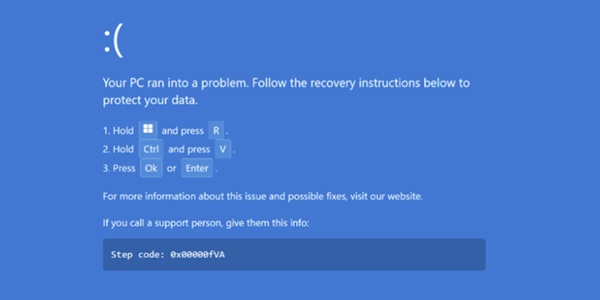
According to warnings from the Federal Trade Commission (FTC), criminals are creating fake CAPTCHA screens that look like the real thing. Instead of simply checking a box or selecting pictures, these phony tests instruct users to open programs on their computers and paste or run commands.
Following those instructions can install malware designed to steal saved passwords, banking information, email credentials, and other sensitive data. You may think you’re proving you’re human, but you’re actually helping criminals install harmful software.

2
The good news is that recognizing the unusual instructions can help you avoid the trap:
-
A legitimate CAPTCHA won’t ask you to open Windows Run, PowerShell, or Terminal to execute commands. A request to use these tools for human verification is a major warning sign.
-
Never paste and run commands or install software to complete a verification test. Real CAPTCHA tests don’t require these steps.
-
Be cautious of unexpected verification instructions. Fake prompts can appear even on familiar websites, so focus on what the screen is asking you to do.
-
Keep your security software and operating system updated. Enable automatic updates when available and install security updates promptly.
-
If something looks suspicious, close the browser tab. Don’t continue following instructions just to get past the screen.
If you’ve followed suspicious instructions and run a command, disconnect the affected device from the internet and run a scan with trusted security software. Use a different, trusted device to change important passwords and enable multifactor authentication. If it’s a work device, notify your IT department immediately and follow its instructions.
And if you’ve wondered what the acronym stands for, CAPTCHA means “Completely Automated Public Turing test to tell Computers and Humans Apart.”
Remember, a CAPTCHA should confirm you’re human, not ask you to run commands on your computer!
For banks and credit unions
Share this article with your members
Copy a ready-made summary and link for your newsletter, website or social posts.